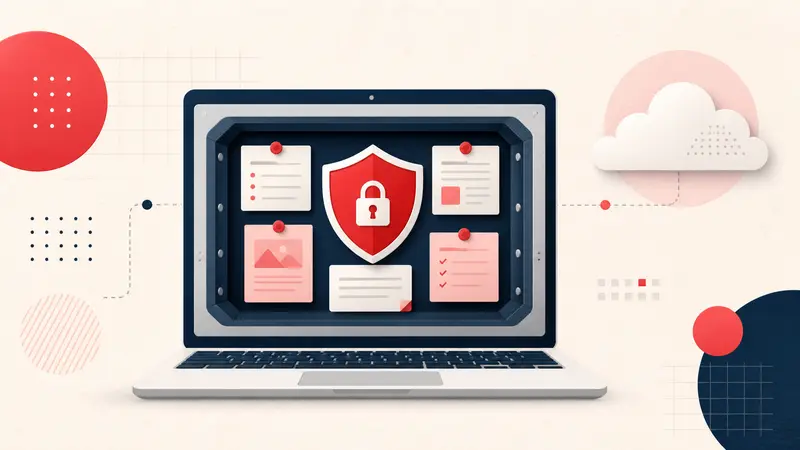
A privacy-first Pinterest note tool should make a narrow, verifiable promise: explain where note content is stored, what leaves the device, which permissions are required, how backups work, and what risks remain.
“Private” should not mean “trust us.” It should be possible to compare the product’s architecture and policy with its behavior.
What the Notestopin Local workspace stores on the device
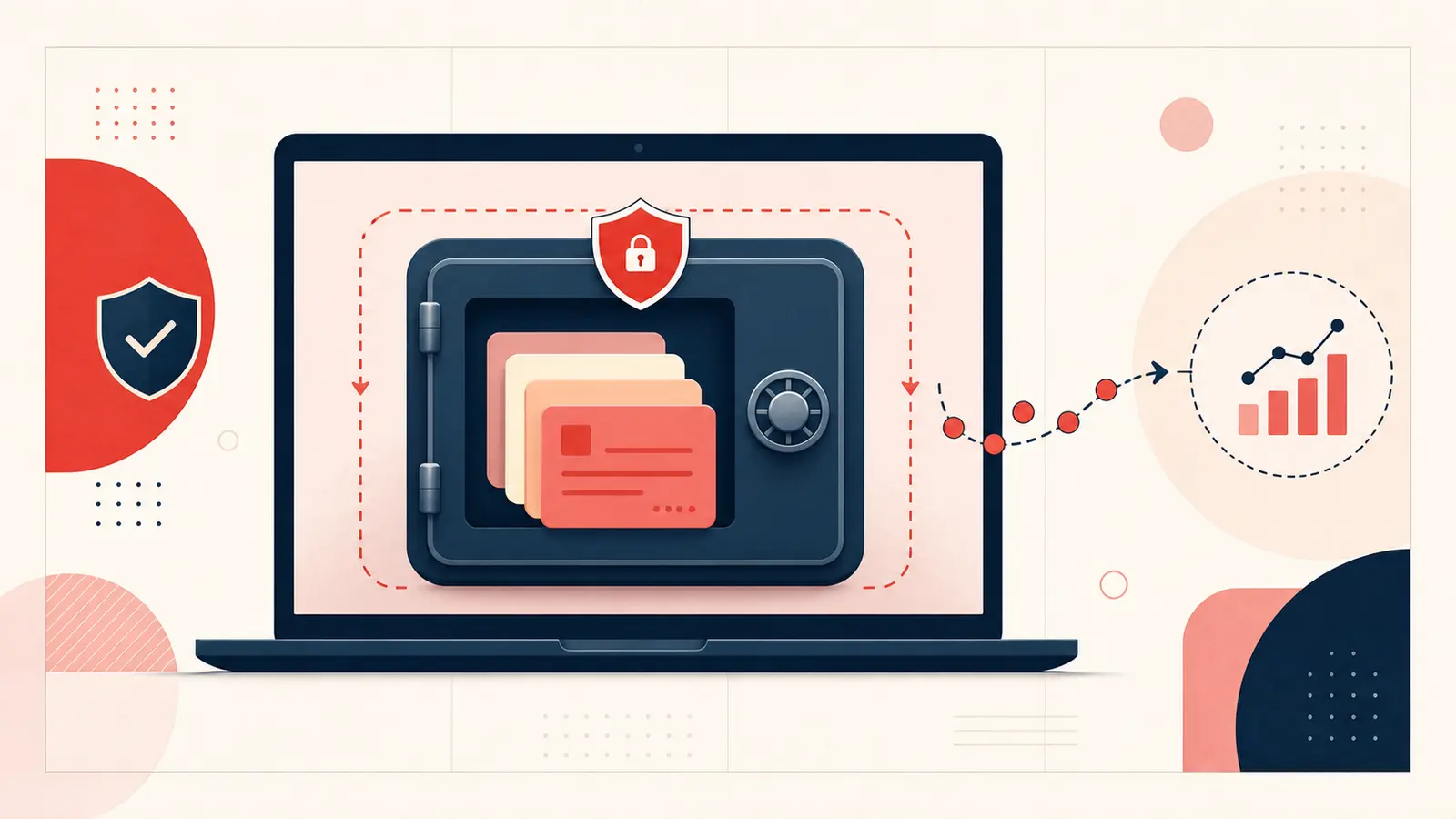
Notestopin’s privacy policy states that notes, tags, links, and Pin metadata in the Local workspace are stored in chrome.storage.local inside the user’s browser profile. The product does not maintain a server-side copy of Local note content unless the user explicitly merges or imports it into Cloud notes.
This reduces server-side exposure for the Local workspace and lets its dashboard search the local library without sending note text to an application database. Optional Cloud Sync is a separate account workspace and has a server copy.
What still leaves the device
Local note storage does not mean the extension has zero network activity. If you enable Sync, new account notes are sent to Notestopin Cloud; existing local notes remain separate until you explicitly merge them, and files reach Cloud notes only when you import them there. The policy also documents limited product events, such as install, update, note-created, import, review-button, and aggregate note-count events. Events use a random installation identifier while signed out and may be associated with the Notestopin account while signed in. Their properties exclude note text, tag names, search terms, Pin URLs, Pin titles, Pin media, the Pinterest account, and the account email.
This distinction is important: Local note content stays local unless you explicitly move it into Cloud notes; account content and limited product activity leave the device for different purposes.
Why local storage changes the privacy model
A centralized note service holds many users’ text in one backend. A local-first note layer keeps each user’s primary note library in that user’s browser profile. For content kept in Notestopin's Local workspace, this removes the account database as a place where that note content could be searched, copied, or breached. Cloud notes have a different exposure because they have an account copy.
It does not make the text invulnerable. Risk shifts toward the device and browser profile.
The threats local storage does not solve
- Physical or remote access to an unlocked device.
- Malware, a compromised browser, or another malicious extension.
- Accidental deletion of the Chrome profile or extension data.
- Unencrypted exports stored in email, cloud drives, or shared folders.
- Sensitive text visible on screen or in browser backups.
Do not use a general planning extension as a password vault, medical record, or place for secrets that require dedicated encryption and access controls.
Permissions to review before installing
Check the Chrome Web Store permission list and the product privacy policy. Ask:
- Which websites can the extension read or modify?
- Does it require an account?
- Is note content transmitted to a remote API?
- Are analytics events documented separately from content?
- Can you export and delete your data?
Permissions are capabilities, not proof of misuse, but they define the maximum access you are granting.
Backups are part of privacy
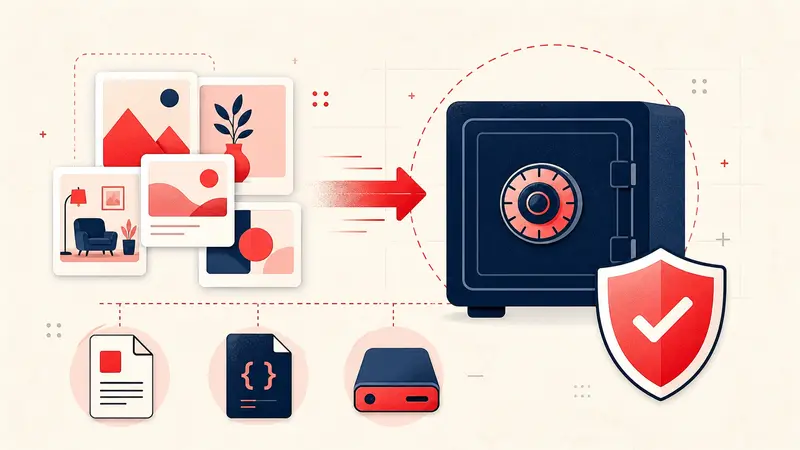
Privacy without recoverability can become data loss. Export Markdown for a readable copy and JSON for structured backup or re-import. Store exports somewhere appropriate for their sensitivity, and delete outdated copies you no longer need.
A practical routine is one local export after major project changes plus a second encrypted or access-controlled copy outside the browser profile.
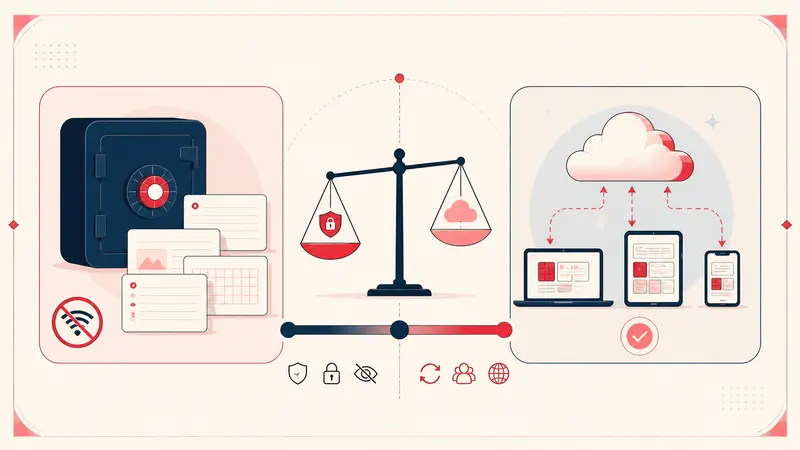
When cloud sync may still be the better choice
A local-only system is less convenient when seamless device handoff is essential. Notestopin Cloud supports device sync, not shared editing. Account notes are stored on Notestopin's server and are not end-to-end encrypted or encrypted with a key only you control. If you use Cloud or another synced tool, review its encryption, retention, access-control, deletion, and export policies. If several people need to edit the same notes, choose a product that explicitly supports collaboration; device sync alone does not imply it.
Privacy is a set of tradeoffs. A well-secured, transparent cloud service may fit a collaborative project better than local storage copied around manually.
A practical privacy checklist
- Read the current privacy policy.
- Review extension permissions.
- Write one non-sensitive test note.
- Export it and inspect the file.
- Decide where backups will live.
- Avoid storing credentials or highly sensitive records.
- Remove the tool and its data if the architecture no longer matches your needs.
The honest privacy promise
Local-first Pinterest notes offer a meaningful benefit: the service does not need a server-side copy of private planning context that remains in the Local workspace. The honest version of that promise distinguishes optional Cloud notes, explains the product-event boundary, and includes device risks and backup responsibility. Clear limits make the privacy claim stronger, not weaker.
Keep building your Pinterest system
Continue with the guide that matches your next step:

Get the Notestopin Chrome extension
Add private notes to any Pin, tag them, and search your saves later.
Add to Chrome