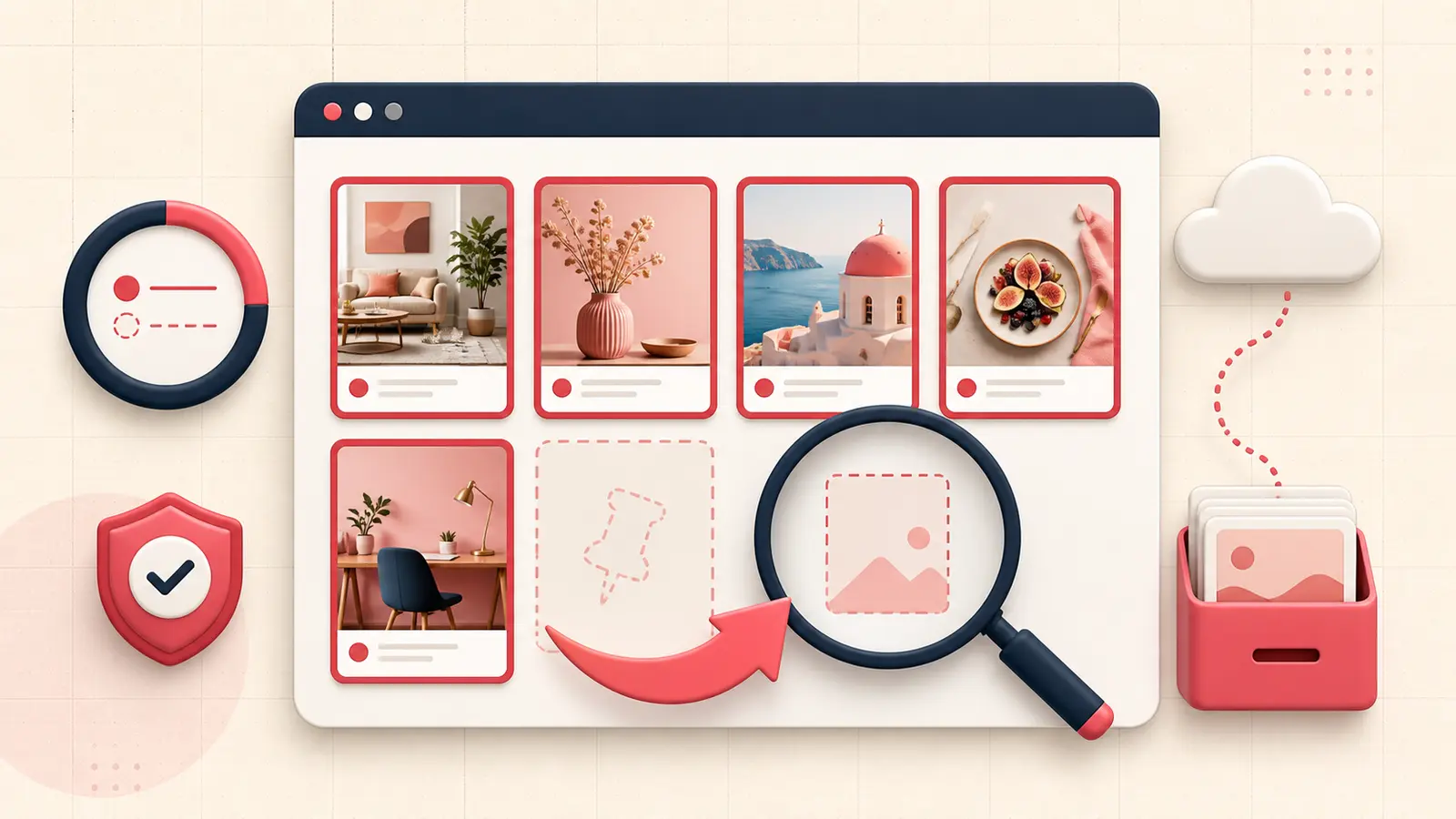
Verified August 31, 2026: a missing Pinterest board does not always mean the board was deleted. Pinterest's current help documentation lists several look-alike causes: the wrong account, an archived board, the Created tab, a recommendation tab inside a board, group-board removal, moderation, or an actual deletion.
Recent user discussions also describe temporary incidents in which boards remained visible in the Save dialog or All Pins view but disappeared from the profile. Those reports are useful outage signals, not proof of what happened to your account. Use the checks below in order and avoid reorganizing large numbers of Pins while the state is unclear.
First: stop changing the library
Do not delete empty-looking boards, move hundreds of Pins, create replacement sections, or repeatedly save duplicates. If the problem is a display or synchronization fault, those actions can make the eventual state harder to understand.
Record four things before troubleshooting:
- the board name and approximate Pin count;
- the time the problem began;
- whether it affects the app, desktop web, or both;
- screenshots of the profile, board count, Save dialog, and any error.
Run the five-minute scope test
- Open Pinterest on desktop web and the mobile app.
- Check the Saved tab, not only Created.
- Open the board and select All saves, not More ideas or another recommendation tab.
- Start saving a harmless test Pin and see whether the missing board appears in the destination list; cancel before saving if you do not need the test.
- Search the Boards tab for the exact board name and scroll to archived boards.
- Open your public profile while logged out only if the board was public. Secret boards will not appear there.
If the board exists on one device or in the Save destination list, treat the incident as a visibility problem until you have stronger evidence of deletion.
Check Pinterest's documented causes
Pinterest's missing Pins and boards guide currently tells users to check:
- Wrong account: logging in with Google or Apple can accidentally create a second account. Compare the username, profile URL, and account email, not just the display name.
- Archived board: archived boards sit below active boards and can be found by board search.
- Wrong profile tab: business accounts may open on Created instead of Saved.
- Wrong board tab: open All saves when a board shows recommendations instead of saved Pins.
- Group-board access: a board can disappear if you left or the owner removed you.
- Moderation: check the account email and enforcement notices for a removal explanation.
If the board was actually deleted
Pinterest documents a seven-day restoration window for deleted boards. Open the Saved tab, scroll to Recently deleted, choose Restore boards, and select the board. Pinterest says restoration is available on desktop and Android; its current iOS instructions do not offer board restoration.
See the official archive, delete, and restore instructions. Pinterest also states that individually deleted Pins cannot be recovered. Do not rely on an unofficial tool claiming it can reach private deleted Pinterest data.
Recognize a likely platform incident
A temporary Pinterest incident is more likely when:
- many unrelated boards disappear at the same time;
- counts or thumbnails still show the missing content;
- the boards remain selectable when saving;
- one device works while another does not;
- other users report the same change during the same period.
For example, users reported this pattern during a February 2026 incident and again in discussions about recent saves not appearing. These are anecdotal observations; wait for cross-device evidence or official confirmation before calling your content deleted.
Request a data copy
Use Settings → Privacy and data → Request your data → Start request. Pinterest says the download link may take up to 48 hours. The archive is useful for identifying account records and preserved data, but requesting it is not a documented restore command and does not guarantee that every missing or deleted item will be present.
Follow Pinterest's current data-download instructions and keep the original archive unchanged.
Escalate with a reproducible report
A useful support report contains:
Account: username and profile URL
Started: date, time, and time zone
Affected: exact board names and approximate counts
Still visible in: app, web, All saves, Save dialog, or nowhere
Tested: devices, browsers, networks, and account verification
Evidence: screenshots and exact error text
Request: confirm whether this is display, moderation, access, or deletion
Do not send passwords, authentication codes, or identity documents through an ordinary support message.
Prevent the next missing-board panic
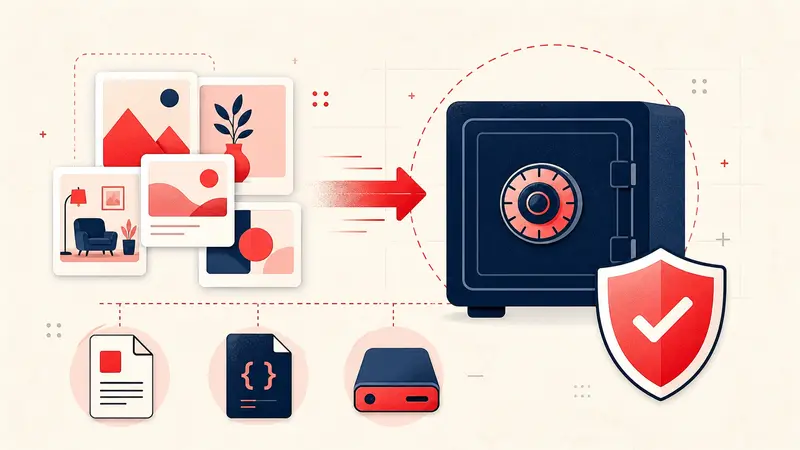
- Request Pinterest account data periodically for important libraries.
- Keep project decisions, source names, and Pin URLs in an exportable notes system.
- Preserve original files you own or are licensed to keep.
- Use archive instead of delete when you may need the board again.
- Enable two-factor authentication and review recent sessions.
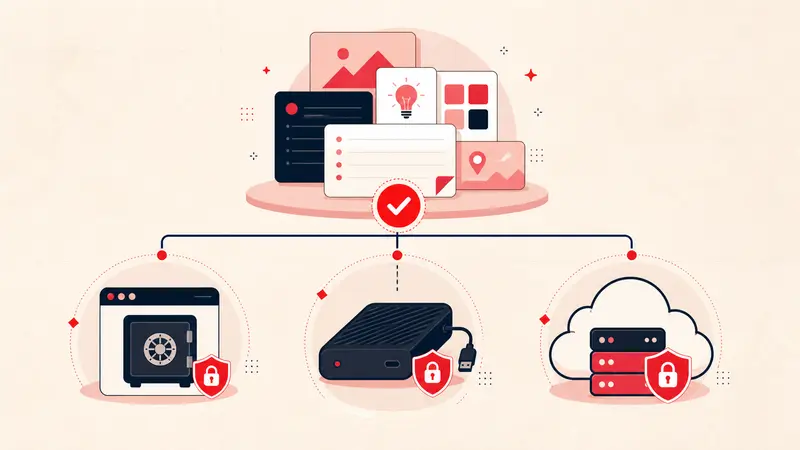
A backup cannot make Pinterest's interface more reliable, but it can separate a temporary display failure from the loss of irreplaceable project context.
Keep building your Pinterest system
Continue with the guide that matches your next step:
Get the Notestopin Chrome extension
Add private notes to any Pin, tag them, and search your saves later.
Add to Chrome