Add Notestopin to Chrome Free local notes. No account needed to start.
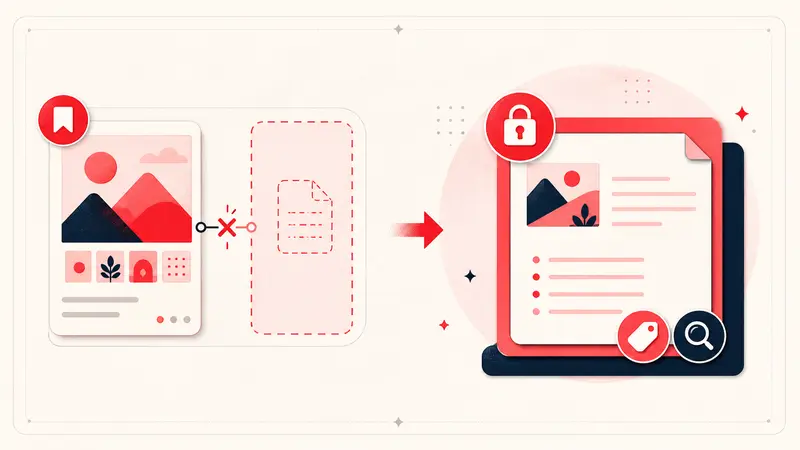
Quick answer: if your Pinterest account no longer exposes the private note workflow you remember, a Chrome extension can add a separate, private note layer to individual Pin pages. Notestopin lets you keep notes in a Local workspace in Chrome or enable Sync for new notes in a Cloud workspace, and both are searchable from the dashboard.
This guide covers setup, a useful note format, tags, retrieval, privacy limits, and backup.
Before you start: what an extension can and cannot do
An extension can attach a new note to a Pin ID and show it when you revisit that Pin. It cannot recover old text that Pinterest no longer exposes, and it does not change the public Pin description.
Use this workflow for personal context. Enable Sync if you want your Cloud notes available across supported devices. Local notes remain separate until you explicitly merge them into the Cloud workspace. If several people must edit the same project records, use a tool that explicitly supports collaboration; device sync alone is not shared editing.
Step 1: install Notestopin from the Chrome Web Store
- Open the official Notestopin Chrome Web Store listing.
- Select Add to Chrome and review the requested permissions.
- Pin the extension to the toolbar if you want quick access to its dashboard and settings.
- Open or refresh Pinterest after installation.
Browser extensions only work on the sites and pages allowed by their manifest permissions. Review an extension’s privacy policy before writing sensitive material.
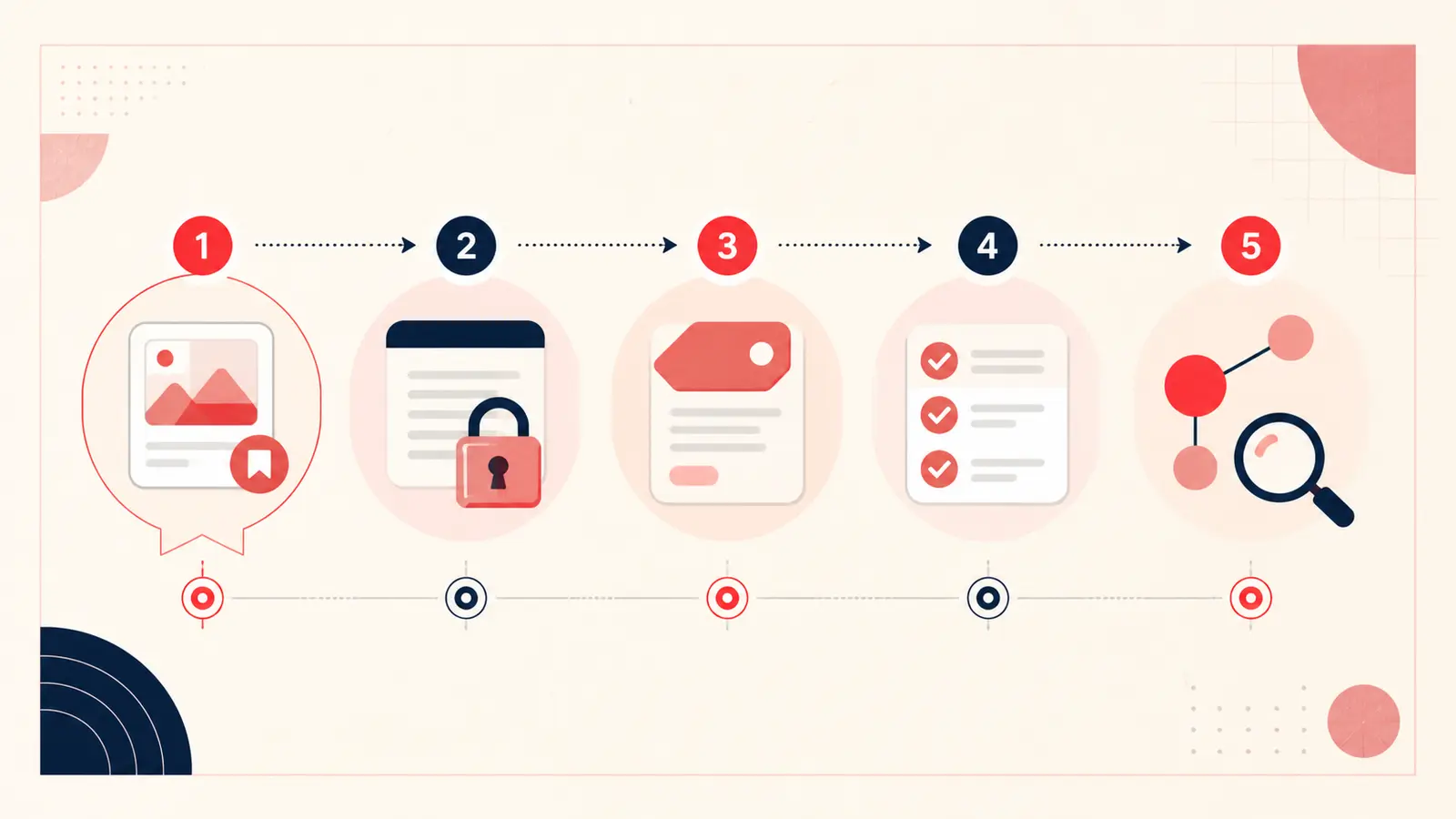
Step 2: open a Pin and write the missing context
Open the Pin itself, launch the note editor, and write the detail future-you will search. Keep the first line concrete:
Reason: the shallow layout fits the guest-room wall.
Constraint: maximum width 72 in; avoid cool gray fabric.
Status: compare after measuring doorway.
Next: find a washable version under the target budget.
You do not need a diary entry. One useful sentence is enough for low-stakes saves.
Step 3: add tags that work across boards
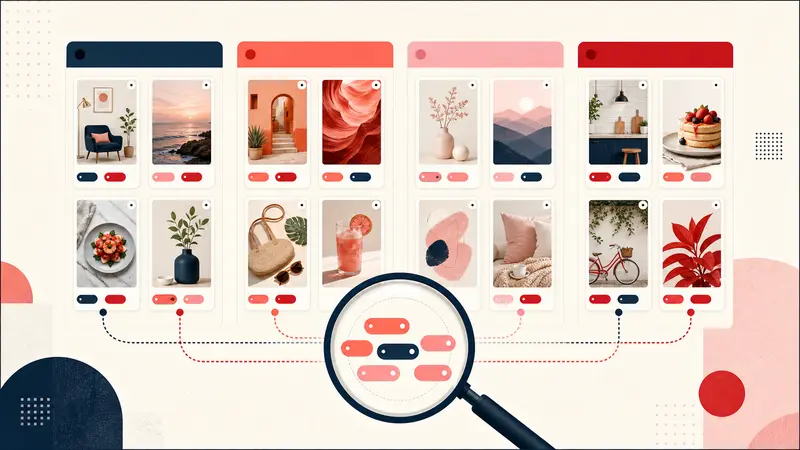
Tags should describe how you will retrieve the Pin, not repeat everything visible in it. Use a small mix:
- project:
#guest-room - status:
#compare - constraint:
#small-space
Keep spelling and singular/plural forms consistent. A short controlled vocabulary produces better filters than dozens of near-duplicates.
Step 4: turn next actions into checklists
Use a checklist when the Pin requires work: measure, request a sample, contact a vendor, buy ingredients, or confirm an opening day. Keep the checklist attached to the reference you will reopen while doing the task.
Step 5: link related Pins
One Pin is often an idea; several connected Pins make a project. Link a room reference to the matching material and vendor option, or connect a travel stop to the hotel and nearby lunch idea. Backlinks help reveal where the same source is used.
Step 6: search by your own words
Search for the memorable detail, not the public title. Queries such as “north wall,” “make again,” “quiet courtyard,” or “works with loafers” retrieve the context you wrote even when the original Pin never used those phrases.
Step 7: export a backup
Local storage improves control but places backup responsibility on you. Export Markdown for a readable copy and JSON for structured backup or re-import. Save dated copies outside the browser profile and verify them occasionally. Cloud notes have an account copy, but an export still provides an independent recovery path.
What makes a private Pin note useful?
- It explains the specific reason for the save.
- It records a constraint the image cannot show.
- It uses words you are likely to search.
- It records a status or next action when the Pin belongs to a project.
- It avoids unnecessary sensitive information.
Privacy and security limits
Notes in the Local workspace are stored in chrome.storage.local and do not have a server-side content copy unless you explicitly merge or import them into Cloud notes. With Sync enabled, new account notes are sent to Notestopin Cloud and are encrypted in transit, but they are not end-to-end encrypted with a key only you control. Separate product events exclude note text, tag names, search terms, Pin URLs, Pin titles, and Pin media. Neither workspace protects you from someone with access to an unlocked browser profile or a compromised device, and Local notes can be lost if you remove the browser data without an export.
Start with the next important Pin
Do not backfill every board. Add one clear note to the next Pin that could influence a purchase, plan, or creative decision. Search for it later. That small retrieval win is the fastest way to make the habit stick.
Keep building your Pinterest system
Continue with the guide that matches your next step:
Get the Notestopin Chrome extension
Add private notes to any Pin, tag them, and search your saves later.
Add to Chrome