The moment you hit “Save” on Pinterest feels productive. You found the idea. You captured it. You moved on. Then two weeks later you are standing in a store aisle, or staring at a half-finished renovation plan, and you realize something uncomfortable.
You saved the pin, but you did not save the reason.
This is the quiet failure mode of Pinterest organization. Boards are great for inspiration. They are not built for fast retrieval, cross-board planning, or decision-making at scale. If you have hundreds or thousands of saved pins, “scroll until you see it” becomes your main workflow. That is not organization. That is luck.
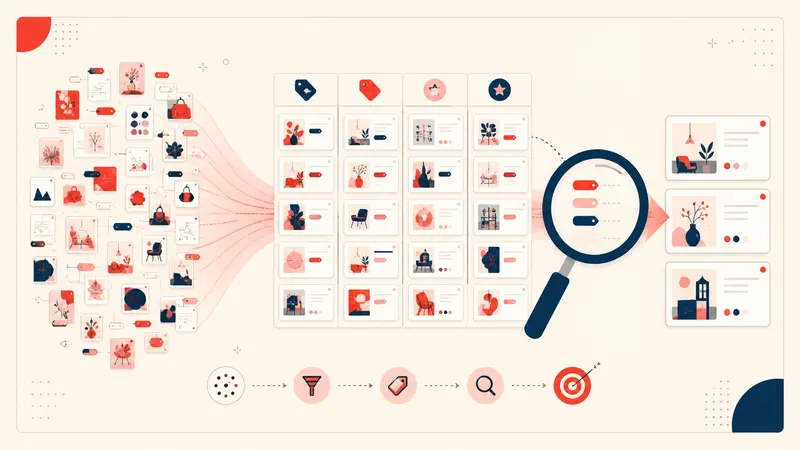
The fix is not more boards. The fix is a tag system that works across boards.
Why boards stop working for Pinterest organization
Boards answer one question: what category is this pin in?
Real projects need more than categories. A single pin can be about a kitchen, under a budget cap, made of oak, shipping in two weeks, and currently on your shortlist. That is five different dimensions.
Boards can only represent one dimension cleanly. That is why people create board sprawl:
- Kitchen ideas
- Kitchen cabinets
- Kitchen lighting
- Kitchen budget
- Kitchen final picks
This feels like organization, but it creates fragmentation. Pins get duplicated across boards, decisions get lost, and your “system” becomes a maze.
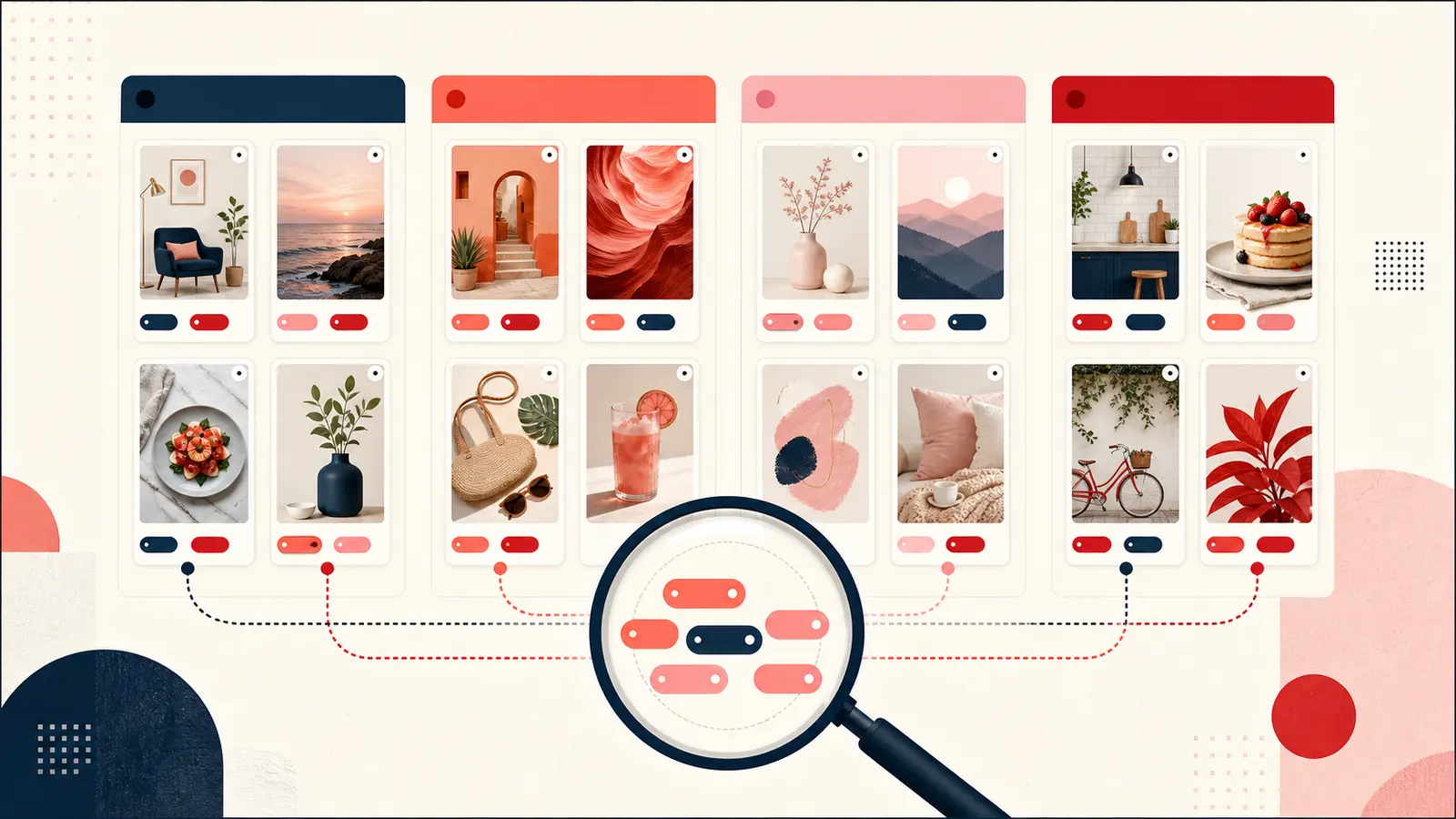
Tags solve this because tags are multi-dimensional. A pin can have multiple tags. Tags allow filtering. Filtering is what turns Pinterest from a moodboard into a planning tool.
What “tags across boards” really means
When people search “how to organize Pinterest pins,” they usually mean one of these:
- Find a saved pin fast without scrolling
- Organize pins across multiple boards without duplicates
- Plan a project using constraints like budget, size, and timeline
- Compare options and make a decision without starting over
A cross-board tag system does exactly that. It gives you a second layer on top of boards that behaves like your brain when you make decisions.
The best Pinterest tag system has 3 types of tags
Most tag systems fail because people only use theme tags. Theme tags are useful, but they are not enough. The highest-leverage tags represent how you filter and decide.
1) Theme tags
Theme tags describe what a pin is about. These are your categories.
- #kitchen
- #livingroom
- #workwear
- #dessert
- #brandidentity
2) Constraint tags
Constraint tags describe requirements. They reduce options and prevent wasted time.
- #under1000
- #smallspace
- #petfriendly
- #linen
- #dairyfree
- #shipsfast
- #84inchmax
3) Status tags
Status tags describe where the pin is in your decision process. This is the tag category most people skip, and it is the category that creates real organization.
- #needscomparison
- #finalist
- #reject
- #buy
- #tried
- #makeagain
If you only implement one improvement, implement status tags. They stop the cycle of re-evaluating the same pins every time you revisit a project.
The rules that keep your Pinterest tags clean
Pinterest organization fails when tags turn into chaos. Clean tags require rules. Here are the rules that work for almost everyone.
Rule 1: Use lowercase and no spaces
Use #smallspace, not #Small Space.
Consistency makes filtering reliable.
Rule 2: Avoid synonyms
Pick one tag per idea. If you use #under1000,
do not also create #budget unless it means
something different. Synonyms split your system.
Rule 3: Create a starter dictionary
Start with 20 to 40 tags you expect to reuse. This becomes your stable base. Add new tags only when you see a repeat pattern.
Rule 4: Tag for filtering, not for describing
Ask a simple question: will I ever filter by this? If the answer is no, skip the tag.
The fast workflow: how to tag Pinterest pins without slowing down
A Pinterest organization system must preserve speed. If tagging feels heavy, you will stop doing it. The goal is a lightweight habit that compounds.
Step 1: Add 2 to 4 tags when you save a pin
Use a simple formula:
- 1 theme tag
- 1 constraint tag
- 1 status tag
- Optional extra constraint tag
Example for a sofa pin:
- #livingroom
- #petfriendly
- #under1000
- #needscomparison
Step 2: Write one sentence of context for important pins
Tags tell you how to filter. Context tells you why you saved it. One sentence is enough:
- “Fits 84 inch max width and ships in two weeks.”
- “Good material, but color might be too warm.”
- “Cheaper than option B, but return policy is worse.”
This is how Pinterest pins become decision-ready.
Step 3: Review your status tags when it is decision time
When you revisit a project, do not browse. Filter by your tags and move pins through your pipeline.
- Move candidates from #needscomparison to #finalist
- Mark options you ruled out as #reject
- Mark the chosen pin as #buy or #finalchoice
- For recipes, mark outcomes as #tried and #makeagain
This turns “saved pins” into a structured shortlist.
How to organize Pinterest pins across boards without duplicating pins
The most common Pinterest organization mistake is duplicating pins across boards to simulate cross-board grouping. It works until it does not. Duplicates create confusion because you do not know which board contains the most up-to-date state of your decision.
A cleaner system:
- Keep boards broad by project or domain, like Kitchen, Workwear, Branding
- Use tags for precision across boards, like #under1000, #smallspace, #finalist
- Use status tags to track progress without moving pins everywhere
Boards become your shelves. Tags become your index.
Real tag sets you can copy today
Recipes and meal planning
Goal: find what to cook tonight, fast, and remember what worked.
- Theme: #dinner #dessert
- Constraint: #30min #highprotein #glutenfree
- Status: #tried #makeagain #needscomparison
Home renovation and interior design
Goal: filter by real constraints and avoid rework.
- Theme: #kitchen #bathroom #lighting
- Constraint: #under1000 #smallspace #shipsfast
- Status: #finalist #reject #buy
Shopping comparisons
Goal: compare alternatives and commit without second guessing.
- Theme: #sneakers #jacket #workwear
- Constraint: #sizeM #linen #waterproof
- Status: #needscomparison #finalist #buy
Branding and design inspiration
Goal: turn inspiration into usable references.
- Theme: #logo #typography #colorpalette
- Constraint: #minimal #highcontrast #serif
- Status: #reference #finalist #reject
How to find saved pins fast with tags and search
The fastest way to retrieve is a two-step process:
- Search for the memory hook, like “oak,” “84 inch,” “linen,” “paint code,” or “30 min.”
- Filter using constraint and status tags, like #under1000 and #finalist.
Search gets you close. Tags get you correct.
When boards and sections are not enough
Pinterest boards and sections can help you group content, but they do not behave like true multi-select tags that filter across boards. If you want a system that feels like a real Pinterest organizer, look for a workflow that supports:
- Custom tags that apply across boards
- Multi-select filtering
- Search across titles, links, tags, and your recorded context
- A dashboard view for browsing and managing at scale
- Optional private notes on pins for decision context
This is exactly the model behind Notestopin. Tag pins across boards, add private context when it matters, then search and filter from a dashboard when it is time to act.
FAQ
Can you tag Pinterest pins across boards?
Pinterest boards are containers, not a true tag system. A tag workflow works across boards by letting one pin participate in multiple filters at once, like #kitchen and #under1000 and #finalist.
What are the best tags for Pinterest organization?
Constraint tags and status tags are the highest leverage because they reflect how you decide. Theme tags are useful, but they should not be your only tags.
How many tags should I use per pin?
Usually 2 to 4. One theme, one constraint, one status, and optionally one extra constraint. More than that tends to slow you down and reduce consistency.
Do I need more boards to stay organized?
Usually no. More boards often create fragmentation. Keep boards broad and use tags for precision.
How do I stop re-evaluating the same pins over and over?
Use status tags like #needscomparison, #finalist, and #reject. When you revisit a project, filter by status instead of scrolling.
Quick start checklist
- Pick 20 to 40 core tags across themes, constraints, and statuses.
- Tag new pins with 2 to 4 tags as you save them.
- Write one sentence of context for important pins.
- Review status tags weekly and move pins forward in your decision flow.
- When you revisit a project, filter by tags instead of browsing.
The best Pinterest organization system is not the one with the most boards. It is the one that lets you find the right pin quickly, compare options, and make decisions without starting over. Tags across boards are the simplest way to get there.
Keep building your Pinterest system
Continue with the guide that matches your next step:

Get the Notestopin Chrome extension
Add private notes to any Pin, tag them, and search your saves later.
Add to Chrome