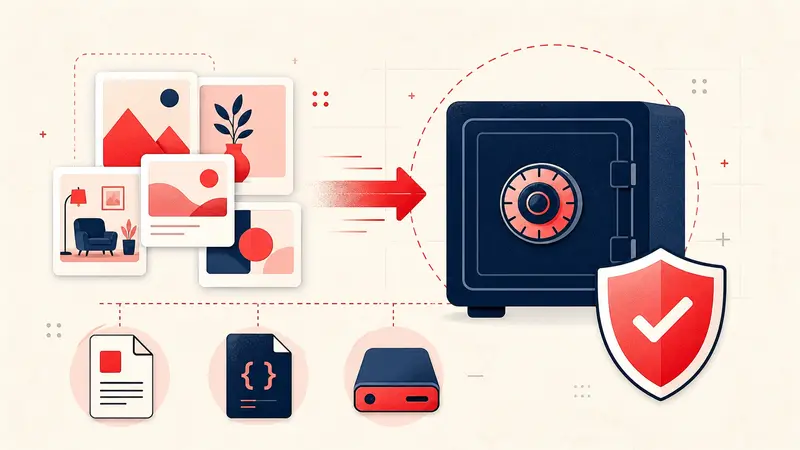
Current behavior: Notestopin exports selected workspace notes as a single Markdown or JSON file. You can choose Local, Cloud when signed in, or both. Markdown is the readable archive. JSON is the structured backup and re-import format. Neither export automatically creates one Notion page, Obsidian file, or Excel row per Pin.
Export from the actual dashboard controls
- Open the Notestopin dashboard.
- In the sidebar, choose Export.
- Select Markdown (.md) or JSON (.json).
- In the workspace dialog, choose Local, Cloud, or both. Cloud is available only when you are signed in. Then store the dated download outside the Chrome profile.
There is no separate “Settings → Export Data” path in the current dashboard.
What the Markdown file contains
The Markdown archive starts with a generated timestamp and then writes each note as a document section. Its front matter can include:
- Pin ID and Pin URL;
- title and tags;
- created and updated timestamps;
- image URL, media type, and video URL;
- the note text below the front matter.
It is readable in any text editor and suitable for inspection even if Notestopin is unavailable.
What the JSON file contains
The JSON root includes the application name, schema version, export time, extension version, counts, and a notes object keyed by Pin ID. Preserve this structure if you want to re-import the backup.
Do not edit your only JSON copy. Make a duplicate before transforming it for another application.
Import Markdown into Notion
- Create or open the destination page.
- Use Notion’s import command and choose Markdown.
- Select the Notestopin
.mdfile. - Confirm the entry boundaries, links, tags, and note text survived.
Expected result: one Notion page containing the full archive. If you want one database row per Pin, Markdown import is not enough. Transform a copy of the JSON into CSV or another tabular format first, then map fields deliberately.
A sensible Notion database mapping
- Name: title, with Pin ID as fallback;
- Pin URL: URL field;
- Tags: multi-select;
- Note: rich text;
- Updated: date;
- Image URL: URL field;
- Media type: select.
Import Markdown into Obsidian
- Copy the exported Markdown file into the vault.
- Open it as a single archive note.
- Check front matter rendering and any wiki-style links in the note text.
Expected result: one file and therefore one primary graph node. If you want one file per Pin, split a copy of the archive or convert the JSON. Unresolved wiki links do not become useful graph connections until corresponding note files exist.
Open the JSON in Excel with Power Query
- In a supported desktop version of Excel, use Data → Get Data → From File → From JSON. Labels vary by version and platform.
- Select the exported JSON copy.
- Navigate to the root
notesrecord. - Convert that record to a table so each Pin ID becomes a key.
- Expand the value column into fields such as title, URL, text, tags, and timestamps.
- Expand or join the tag arrays only if your analysis needs one tag per row.
If your Excel version cannot import JSON, transform a copy to CSV with a trusted local tool. Keep the original JSON unchanged for restoration.
Run a restore check
A download is not proven until you can inspect it. After exporting:
- search Markdown for the newest note;
- confirm JSON parses and contains the same Pin ID;
- keep the source JSON before experimenting with imports;
- occasionally test Notestopin’s Import flow using a safe profile or disposable test library.
Privacy and source limits
Exports may contain private budgets, client context, URLs, or personal plans. Treat them as confidential files. Also remember that exported image URLs are references; they do not grant usage rights or guarantee the remote image will remain available.
Choose the destination by job
- Markdown: human-readable archive and simple Notion/Obsidian import.
- JSON: Notestopin recovery, automation, and structured transformation.
- Notion database: collaboration and property-based views after transformation.
- Obsidian: local text workflows after deciding whether to keep one archive or split files.
- Excel: tabular comparison and analysis after expanding the nested JSON.
The durable workflow is simple: export both formats, preserve the originals, transform copies, and verify the result.
Keep building your Pinterest system
Continue with the guide that matches your next step:

Get the Notestopin Chrome extension
Add private notes to any Pin, tag them, and search your saves later.
Add to Chrome