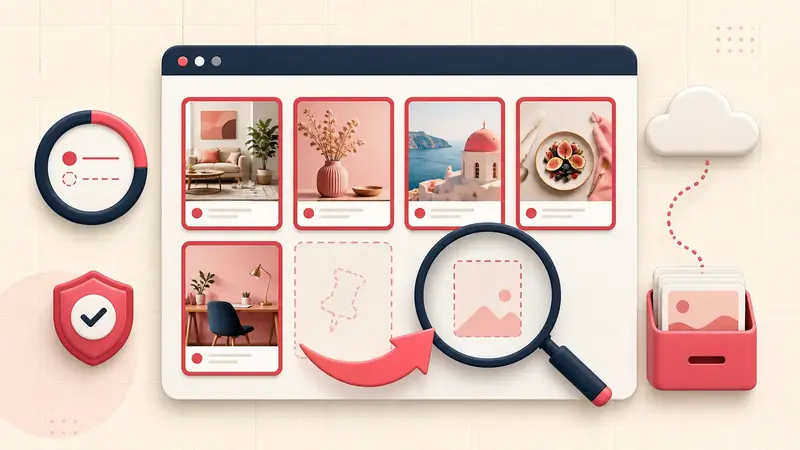
Verified August 27, 2026: “searching for a board” can mean at least four different operations on Pinterest. A failure in one does not prove the board is deleted, private, or unavailable everywhere.
Pinterest currently documents public board discovery through the desktop search filter. Mobile users may not receive the same board-search surface. The board picker shown while saving a Pin is a different interface again.
Quick answer: open the board from your profile or its exact https://www.pinterest.com/username/board-name/ URL first. If the direct board works, preserve it and troubleshoot only the failing discovery or Save-picker path.
Identify which board lookup is failing
- Public board discovery: finding boards created by any user around a topic.
- Your profile: opening a board you own or collaborate on.
- Save destination picker: choosing one of your boards while saving a Pin.
- Inside a board: locating a section or a previously saved Pin.
Your first support note should name one of these four. “Board search is broken” is too broad to reproduce.
Test public board discovery on desktop
According to Pinterest's board discovery instructions, enter a topic in desktop search and choose the Boards result type. At the time of verification, Pinterest says finding boards from search is available only on desktop.
- Use a concrete topic, not your private board title.
- Confirm the Boards result filter is actually selected.
- Repeat while signed out to see whether personalization is involved.
- Open a known public board from a direct profile or URL.
If the direct board opens but the Boards filter finds nothing, discovery is failing; ownership and content remain intact.
Find one of your own boards safely
- Open the correct profile and verify the username.
- Switch to the Saved area, not Created.
- Check archived boards.
- Open likely parent boards and inspect their sections.
- Check whether the board belonged to another account or a group-board owner.
- Use browser history, old messages, emails, or exports to recover a direct board URL.
If the board is genuinely absent, stop searching and use the board recovery checklist.
Diagnose a board missing from the Save picker
Open a normal Pin and begin the Save flow. Search using a distinctive word from the board title, then scroll the board list manually. Compare the result on desktop and mobile.
- If manual scrolling finds it, the picker search index is the failing layer.
- If the board opens from your profile but never appears as a destination, check ownership, archive state, and collaborator permissions.
- If no boards appear, test another Pin and a clean browser or current app before editing account data.
- If one board title fails, temporarily note the exact title and special characters; do not rename it until you have captured the original URL.
Distinguish boards, sections, and Pins
A section is not an independent board and may not appear in global board results. Save to the parent board, then choose or organize into the section using the available interface. Likewise, searching your saved Pins by note or title is not the same as searching for a board. For private retrieval, use the saved-Pin search guide.
Avoid dangerous “fixes”
- Do not delete and recreate the board before proving the original is gone.
- Do not merge boards merely to make one appear in a picker.
- Do not remove and re-add collaborators without recording ownership and permissions.
- Do not create many near-duplicate boards during a temporary outage.
- Do not clear app data unless you know the account credentials and have preserved drafts.
Capture a minimal reproduction
Board URL and exact title:
Owned or collaborative:
Public, secret, or archived:
Opens from profile: yes/no
Appears in Save picker: yes/no
Public Boards filter finds it: yes/no/not applicable
Desktop/mobile result:
Screen recording:
The useful diagnosis
A discoverability failure, destination-picker failure, permissions problem, and missing board need four different remedies. Prove which lookup path fails before moving a single Pin.
Keep building your Pinterest system
Continue with the guide that matches your next step:
Get the Notestopin Chrome extension
Add private notes to any Pin, tag them, and search your saves later.
Add to Chrome