Before you start
- Use the browser and profile where you want to keep the notes. On Chrome, install or update the Notestopin extension first, keep it enabled, then refresh the library. Use a normal window, not an Incognito window.
- Sign in to the account containing your Cloud notes. Go to cloud.notestopin.com, select Sign in, and use the same email address as that account. Enter the sign-in code emailed to you.
- Export while your Cloud access is available. Exporting is free during retention. If support restored your notes with a temporary access window, use the exact deadline in your recovery email. A temporary window can be shorter than the standard retention period mentioned in the notice.
Where will Local notes live? With a current, connected extension, the website and extension use the same Local library in that browser profile. Without the extension, the website keeps Local notes in that browser’s storage. They do not automatically appear in another browser, profile, phone, or computer.
The address cloud.notestopin.com opens both workspaces. Choosing Local notes keeps imported notes on your device; the website address does not make those notes Cloud notes.
On a phone or a narrow window, open the sidebar using the menu button to find Export and Import. The screenshots below show the desktop layout.
1 Export your Cloud notes
- Select Cloud near the top of the sidebar.
- Check the Cloud note count and make sure your notes are present.
- If you see the retention notice, click Export free.
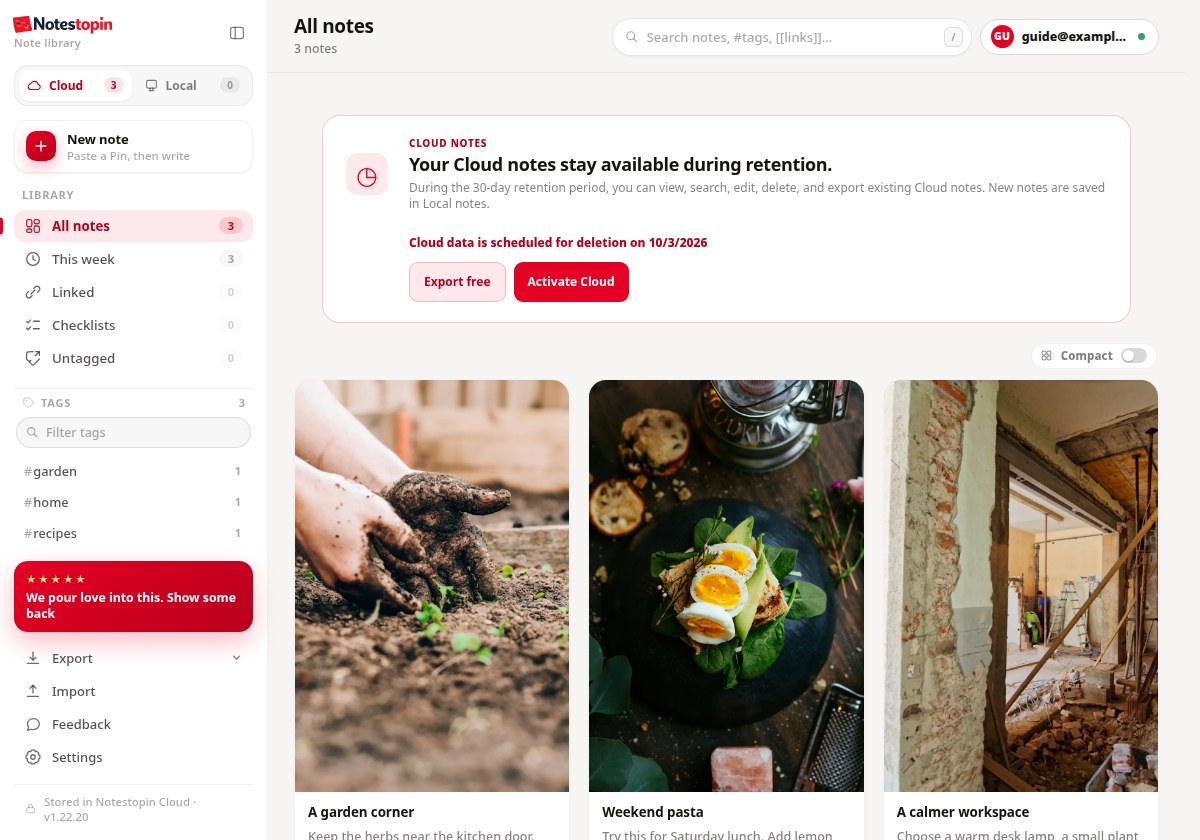
- In the format chooser, select JSON (.json).
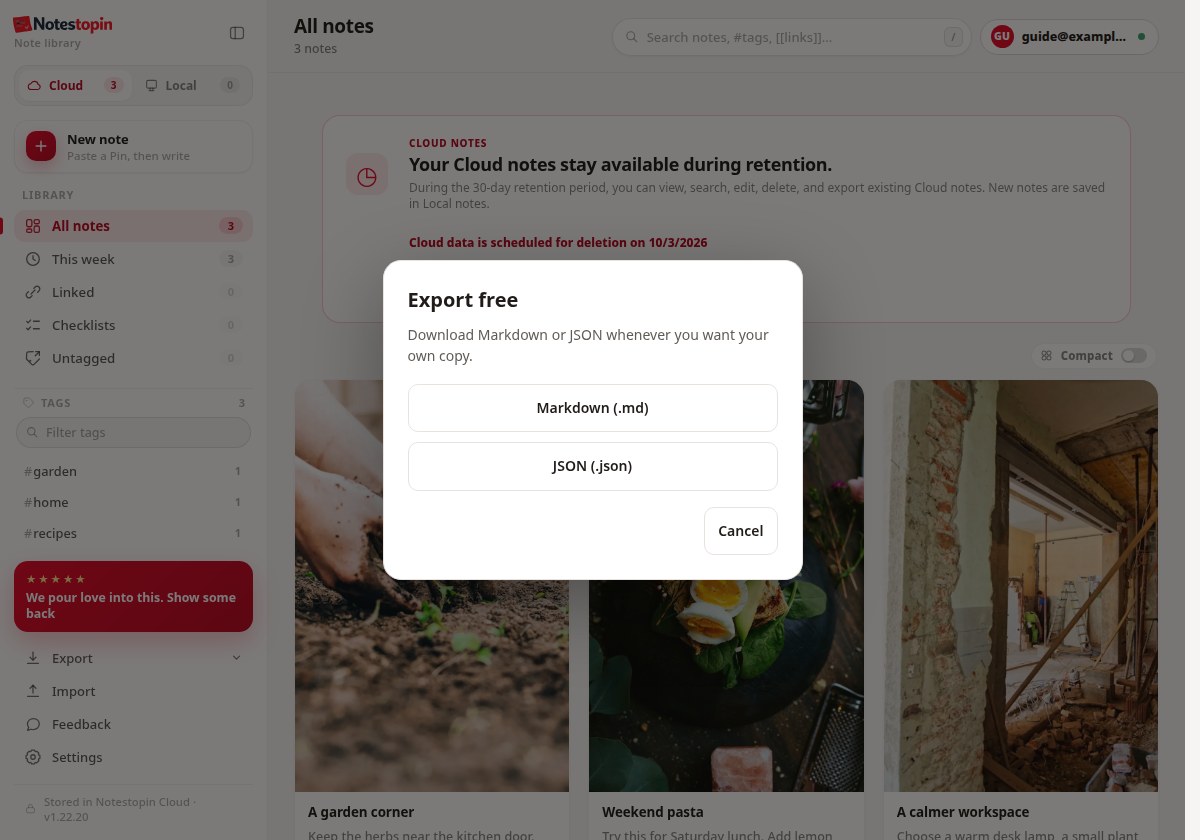
- Your browser downloads a file such as
notestopin-export-20261001.json. Find it in your Downloads folder, or save it somewhere you can find again. Keep the file unchanged.
| Format | What it is for |
|---|---|
| JSON (.json) | Backing up and importing notes into Notestopin. Use this for this guide. |
| Markdown (.md) | Reading or keeping your writing in a text editor. The Notestopin importer does not accept Markdown files. |
If there is no retention notice
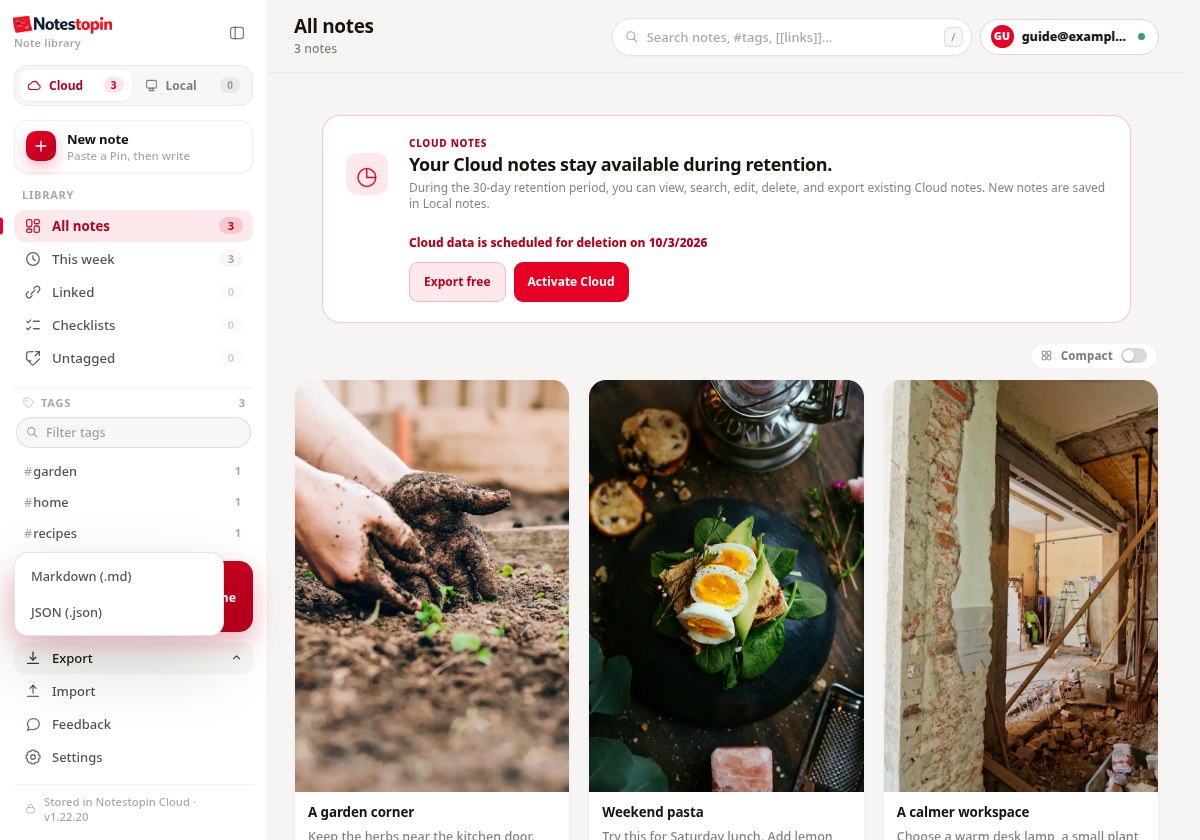
Use Export at the bottom of the sidebar, then choose JSON (.json).
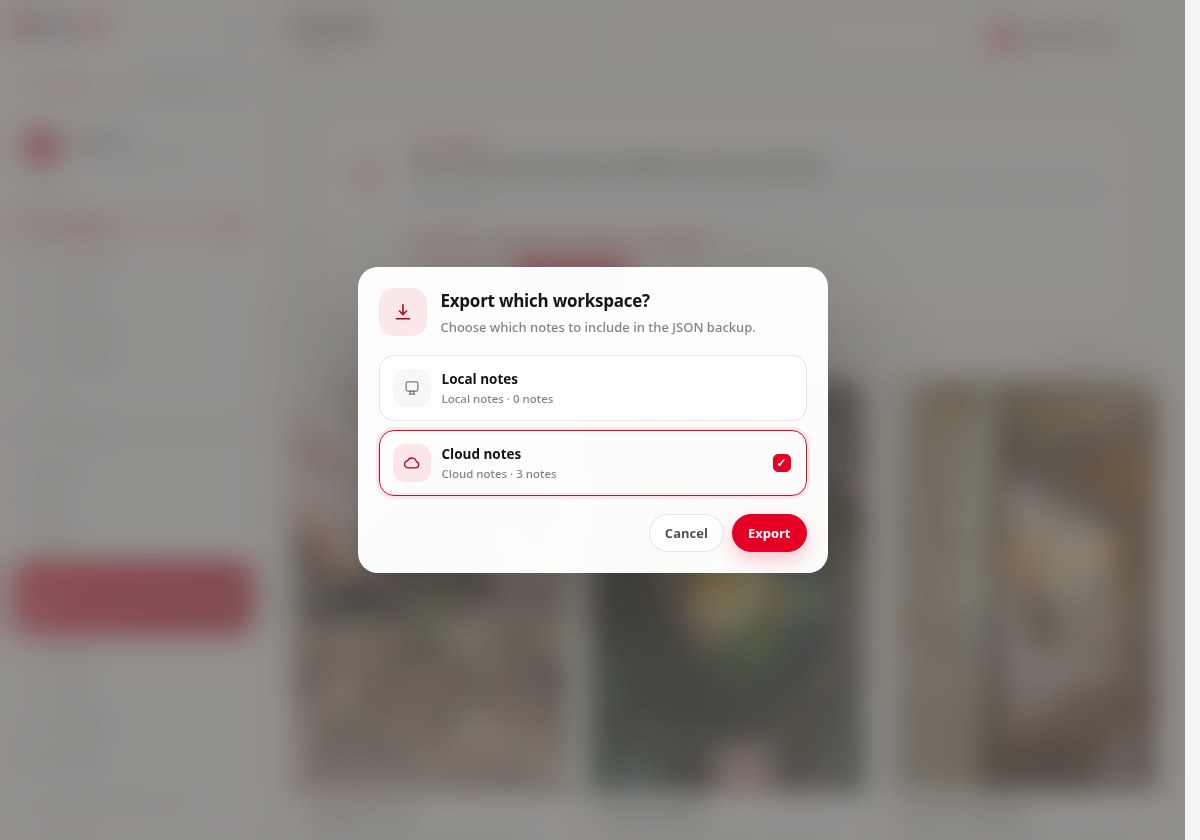
In Export which workspace?, select Cloud notes. For this transfer, leave Local notes unchecked so the file contains only your Cloud library. Click Export.
Keep the original download. It is your independent backup. Downloading or importing it does not delete the Cloud copies or activate a paid subscription.
2 Import into Local notes
- In the same browser profile, click Import in the sidebar.
- When asked Where should these notes go?, select Local notes. It may already be selected.
- Click Choose file, then select the
notestopin-export-…jsonfile you just downloaded.
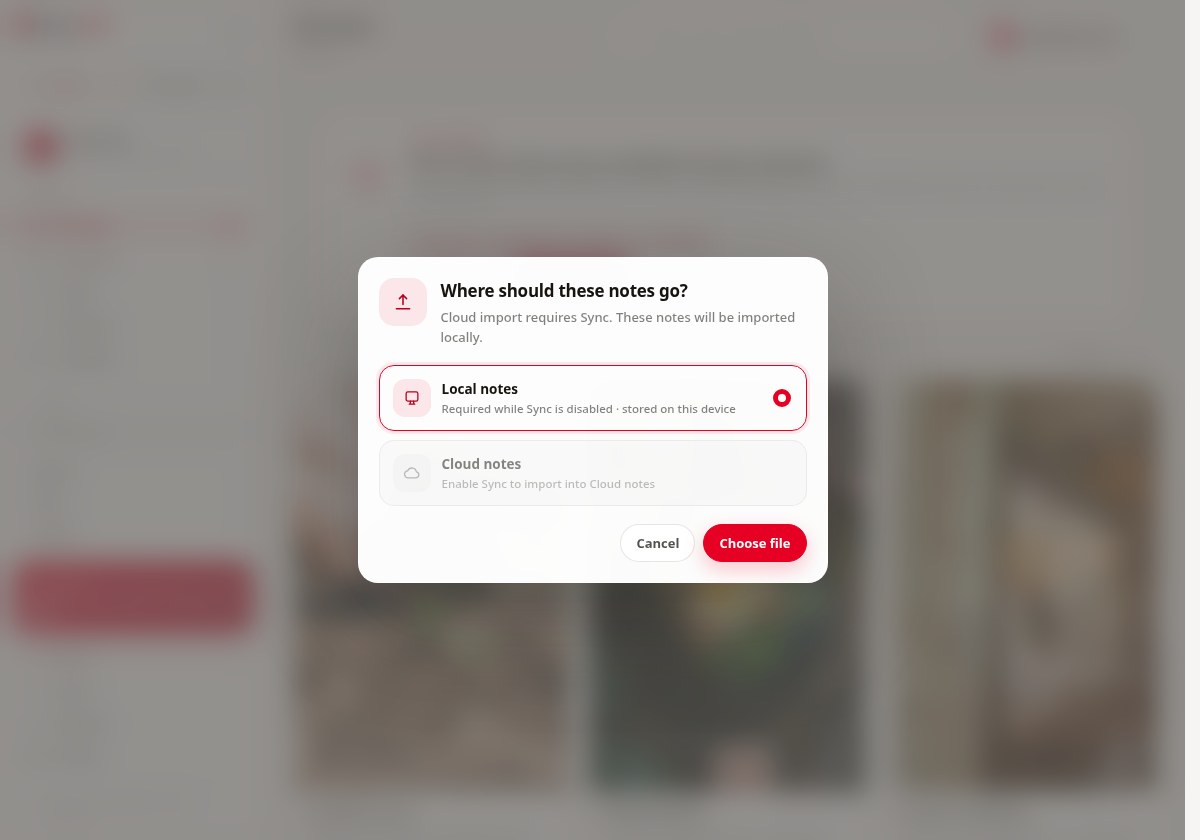
- Read the confirmation. Check that its title says Import into Local notes? and that the note count looks right.
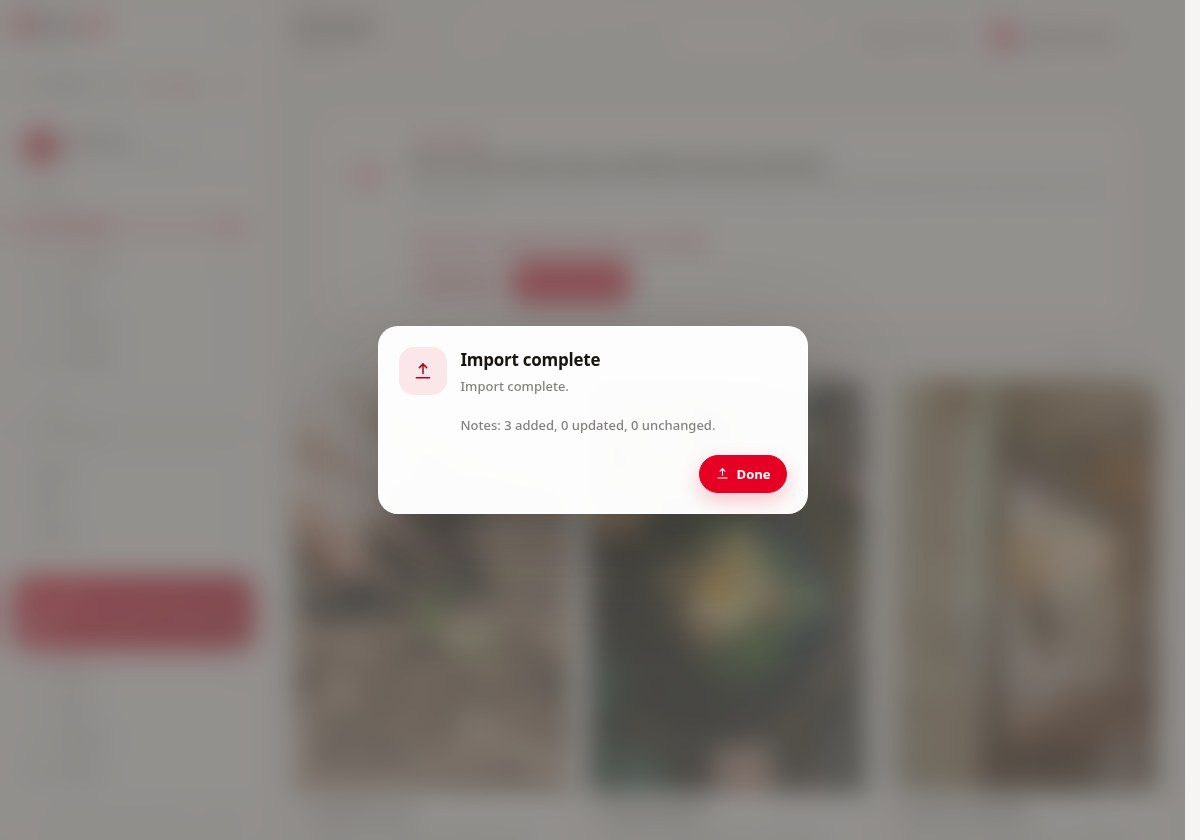
- Click Import to Local and wait for the completion message.
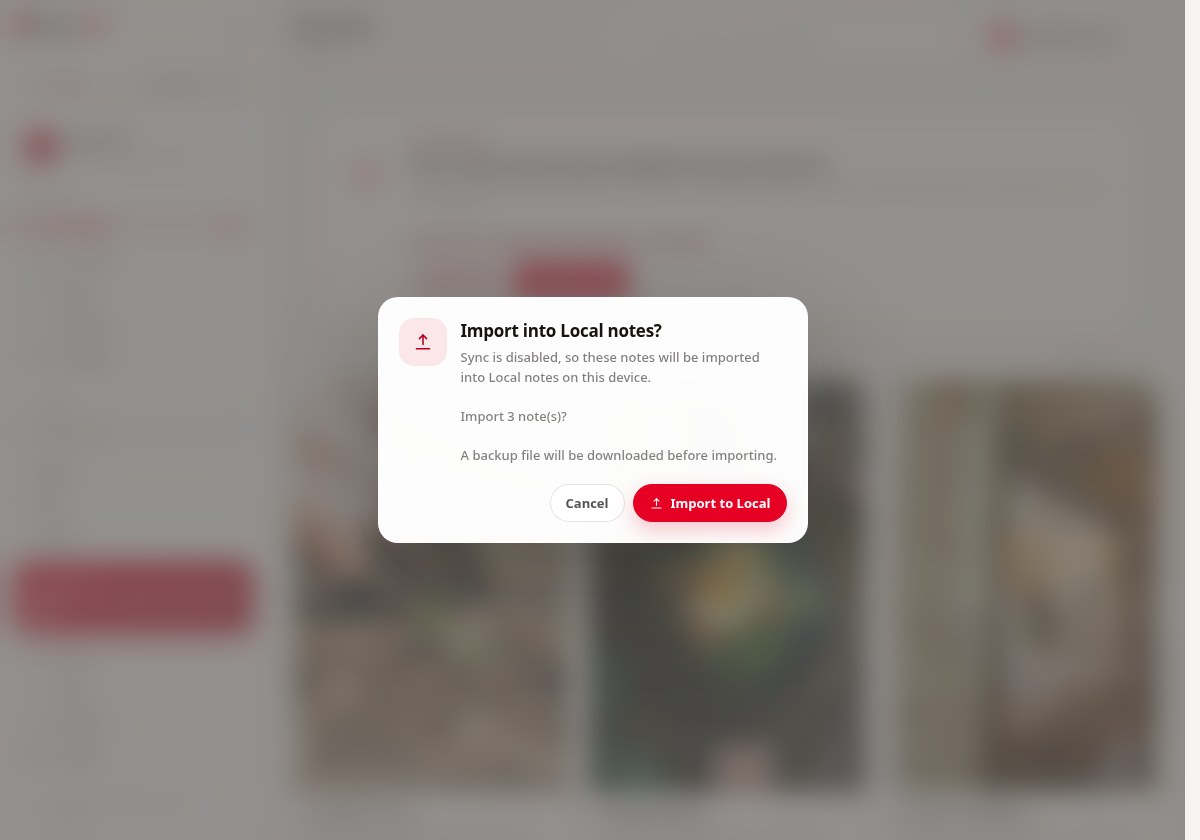
You may see a second download. Before importing, Notestopin attempts to download a backup of your current Local library named notestopin-backup-before-import-…json. That backup can be empty if your Local library was empty. Keep your original Cloud export too; the two files serve different purposes.
If a Pin already has a Local note, the imported note replaces it only when the imported note has a newer edit timestamp. Otherwise, the existing Local note stays. Other Local notes remain in place. The pre-import backup lets you keep a copy of the earlier library.
3 Check your Local library
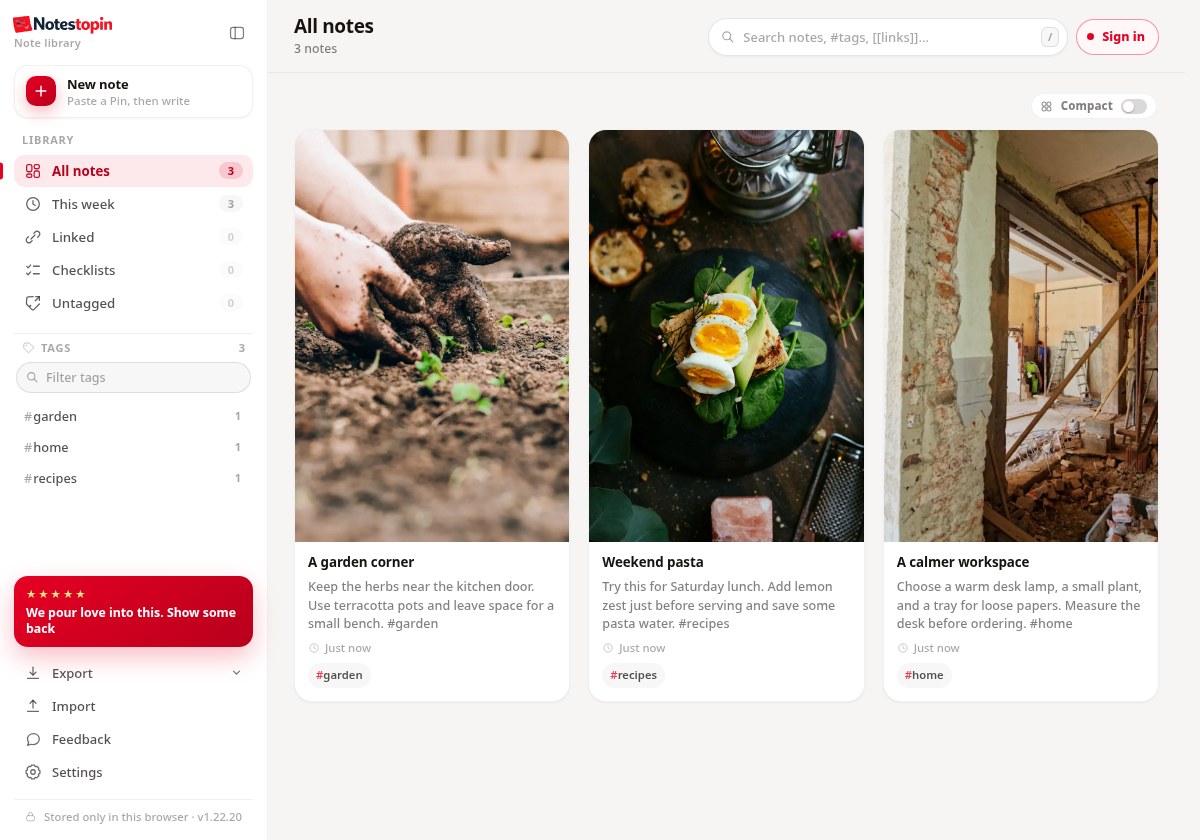
- Click Done. The library should switch to Local.
- Check the Local count and open a few notes to confirm that your writing is there. If you already had Local notes, the total can be larger than the number you imported; overlapping Pins can reduce the number newly added.
- Refresh the page and check again.
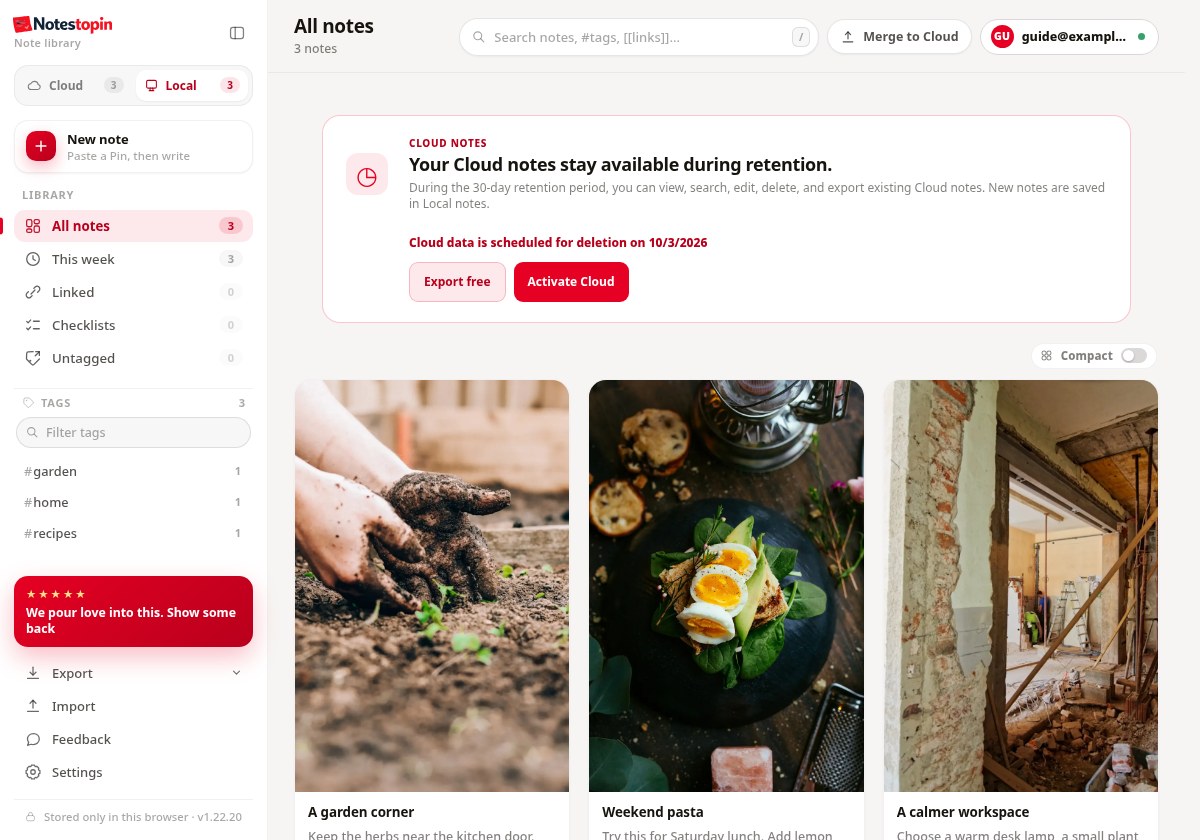
You can now use Local notes for free. If you prefer to use Notestopin without an account, open the account menu at the top right and choose Sign out. Your Local notes remain available. When signed out, the Cloud/Local switch is hidden and the library shows your Local notes.
- Your notes are visible in the Local library after a refresh.
- You have kept the original JSON export somewhere safe.
- You know which browser profile contains your Local notes.
No account or subscription is required to create, edit, search, organize, export, or import Local notes.
Keep future backups
After adding or changing important notes, select Export → JSON (.json) again. In the workspace chooser, select Local notes, then click Export. Keep dated copies in a folder you control. The original file from this guide will not automatically update as you write more notes.
To move to another computer or browser profile, install Notestopin there, open the library, and import that JSON file into Local notes. Each Local library is independent; these copies do not sync automatically.
Keep a backup before uninstalling the extension, deleting a browser profile, resetting your browser, or clearing its data. Local storage belongs to that browser environment and can be lost when it is removed. Keep exported files private, because they contain your writing in a readable format.
The export includes note text, tags, Pin identifiers, links, timestamps, and available media references. It does not download the original Pinterest images or videos as separate media files.
Troubleshooting & questions
I downloaded the file, but Local still shows zero.
Downloading is the export step. Complete the import step as well: Import → Local notes → Choose file → Import to Local. Keep the same browser profile throughout.
The import chooser cannot find my file.
Look in your Downloads folder and choose the file ending in .json. A Markdown file ending in .md cannot be imported. Export again as JSON if needed. Renaming a Markdown file to .json does not convert it.
I imported, but the count is lower than expected.
Read the completion message: notes can be added, updated, or unchanged. A Pin that already exists locally may be updated or left unchanged instead of adding another entry. Clear the search and filters, select All notes, and open the Local workspace. Also check that you exported Cloud notes rather than an empty Local workspace.
The website and extension show different Local notes.
Check that you are using the same browser profile and that Notestopin is installed, enabled, and updated. Shared Local storage is supported from extension version 1.22.17 onward; older extensions can have a separate library. Update first, reopen the library from the extension’s Open library button, and refresh. If a message says the extension is unavailable, reconnect it before importing again.
I see a subscription button. Must I pay to export?
No. During retention, use Export free or the regular Export menu. Importing into Local notes and using those notes afterward are free. Activate Cloud is a separate option for a paid Cloud plan.
What happens when my temporary Cloud access ends?
Cloud access can end at the deadline shown for your account or in your recovery email. Complete the export before then. Your downloaded JSON file and the notes you have already imported into Local remain yours and do not depend on that deadline. If access ends before you export, contact support.
Can I import after signing out or after Cloud access ends?
Yes, if you already downloaded the JSON file. Local import does not need a sign-in or a subscription. The Cloud access deadline matters for downloading the Cloud copy, not for using a backup you already have.
Will importing delete my Cloud notes or sign me up for a plan?
No. Importing into Local creates or updates notes on your device. The Cloud copies stay separate, and no subscription is activated by exporting or importing.
The browser blocked a download, or the file will not import.
Check your browser’s downloads panel and allow the download you requested. Retry with the original Notestopin JSON export, without editing it. The importer accepts files up to 50 MB. If an error remains, keep your original file and contact support with the error message. You do not need to post your private notes publicly.
Need a hand? Email support@notestopin.com and tell us which step you reached.